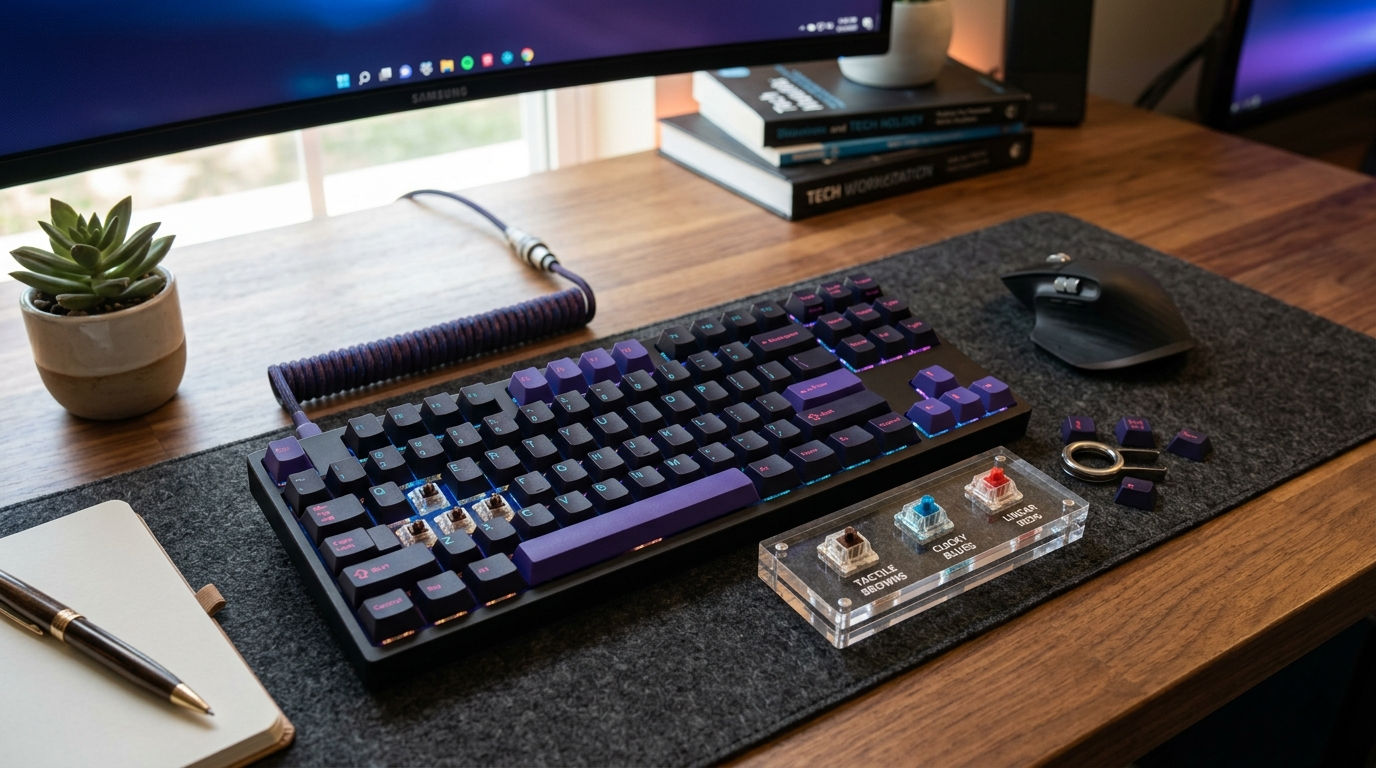
Mechanical Keyboard Switches Explained (Linear, Tactile, Clicky)
The heart of a mechanical keyboard is its switches, and the first real decision is which type. They come in three families: linear, tactile, and clicky. Here is what each feels like and how to choose.
- Switches are what sit under each key and define how the board feels and sounds. Choosing a switch type is the first real decision.
- There are three families: linear (smooth all the way down), tactile (a small bump partway down), and clicky (a bump plus an audible click).
- Switch "colours" are the brand’s names for types: Red is usually linear, Brown is usually tactile, Blue is usually clicky (with variations by maker).
- Linear (Red) suits gaming and quiet fans of smoothness; tactile (Brown) is a popular all-round typing choice; clicky (Blue) is loud and satisfying but annoys officemates.
- There is no "best" switch, only preference. If you can, try a switch tester or a friend’s board before committing.
What a switch is and why it matters
Underneath every key on a mechanical keyboard is an individual mechanical switch, a small spring-loaded mechanism that registers the press. This is what separates mechanical boards from cheap membrane keyboards (which use a single rubber sheet), and it is why they feel crisp and last for years. Crucially, the switch determines almost everything about how the keyboard feels to type on and how it sounds, more than the fancy keycaps or case do. So when people obsess over mechanical keyboards, they are largely talking about switches. Picking your switch type is therefore the first and most important choice you make, and it is entirely about how you want typing to feel and sound: smooth or bumpy, silent or clicky, light or heavy. Get the switch right and you will love the board.
The three families: linear, tactile, clicky
Switches sort into three feels. Linear switches move straight down smoothly with no bump and no click, giving a clean, consistent keystroke, they are popular for gaming and with people who like a smooth, quiet-ish feel. Tactile switches have a small bump partway through the press that you can feel, letting you sense the moment the key registers without bottoming out; this bump makes them a favourite for typing, as it gives feedback without much noise. Clicky switches take the tactile bump and add a distinct, loud "click" sound with each press, they feel satisfying and typewriter-like, but they are loud, which delights their fans and irritates everyone nearby in an office or on a call. That is the core map: linear is smooth, tactile is bumpy-but-quiet, clicky is bumpy-and-loud.
Colours, weights, and choosing yours
Brands label their switches by colour, and while it varies by manufacturer, some conventions are widespread: Red usually means linear, Brown usually means tactile, and Blue usually means clicky (Cherry MX popularised these, and many brands echo them). Switches also differ in how heavy they are to press (the actuation force) and how smooth or scratchy they feel, but for a first board the type matters most. How to choose? Think about your context and taste: if you share a space or take a lot of calls, avoid clicky Blues and lean tactile Brown or linear Red. If you game a lot, many prefer linear Reds. If you type all day and want feedback, tactile Browns are a safe, popular all-rounder and a common recommendation for a first mechanical keyboard. Best of all, buy an inexpensive "switch tester" (a little board with several switch types) or try a friend’s keyboard, because feel is personal and a two-minute try tells you more than any description.
If you are unsure and cannot test switches first, tactile (Brown-style) switches are the safest default for a first board: they give satisfying feedback for typing, are not loud enough to annoy people around you, and work fine for gaming too. You can always explore linears and clickies later once you know what you like.
Common questions
What are the different types of mechanical keyboard switches?
What do the switch colours mean?
Which switch is best for beginners?
What is the difference between linear and tactile switches?
Are clicky switches too loud for an office?
Gear guides for Mechanical Keyboards
The HobbyStack editorial team researches each guide against manufacturer specifications, published resources and practitioner sources. Every product is checked for availability and described against its current listing before publication, and prices are re-checked when guides are updated.
About our editorial process →